Anúncios
Have you ever experienced the frustration of trying to download a highly anticipated new release, only to be met with an “insufficient storage” warning? It’s common to feel as though your device’s memory vanishes in no time, even when you haven’t downloaded anything large recently.
Learning how to free up space on your phone for installing games is the first step toward regaining control over your device.
Anúncios
Today, we’ll explore practical methods for organizing your files and ensuring your device has the capacity needed to run your favorite titles smoothly, without any lag or crashes.
How to free up space on your phone for installing games: starting with a diagnosis
Before you start deleting files at random, it is essential to perform an accurate storage diagnostic. Understanding what is actually taking up space on your device is the first step toward ensuring your new favorite game can be installed without any issues.
Anúncios
How to check storage on Android
On Android, the process for checking your phone’s storage is usually quite intuitive. Simply go to the “Settings” menu and look for an option labeled “Device Care” or “Storage.”
On this screen, you will see a detailed chart showing the total space used and how much is still available. The system typically offers a quick-cleanup tool that automatically identifies unnecessary files.
How to check available space on an iPhone
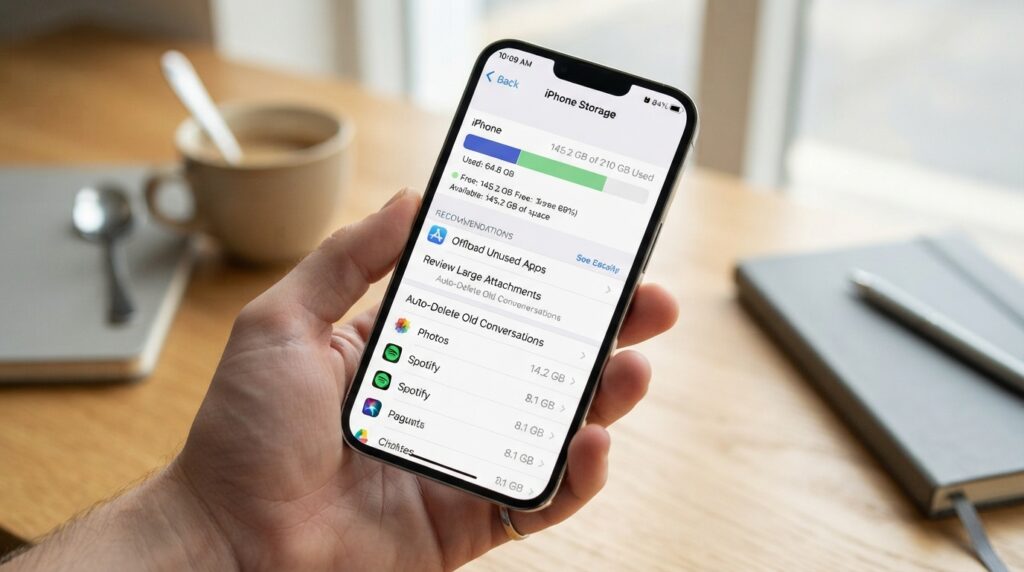
If you use an iPhone, the process is just as simple and efficient. Go to “Settings,” select “General,” and then tap “iPhone Storage.”
The system will display a color-coded bar showing exactly how much space each category consumes. Below the chart, you will find personalized recommendations for optimizing your phone’s storage usage.
How to interpret the categories that take up the most memory
When analyzing the data, you will notice that the system breaks down storage usage into different categories. Understanding each one will help you make better decisions about what to delete.
Apps and games
This category is usually the largest consumer of memory; it includes not only the size of the app itself but also any additional data downloaded after the initial installation.
Photos, videos, and media files
Media files take up a significant amount of space, especially if you frequently record high-resolution videos. Check for duplicate items or content that has already been backed up to the cloud.
Temporary files and system data
The operating system reserves a portion of its memory for temporary files and cache. While these are useful for performance, they can accumulate excessively over time—making them a common target when performing a thorough storage diagnostic.
Uninstall apps you no longer use
Have you ever taken a look at your list of installed apps and realized that you don’t actually open most of them?
Often, we download tools for a specific, one-time need and then forget to remove them. Identifying these unused apps is a smart strategy for quickly freeing up storage space.
How to find forgotten apps on your phone
To locate what’s taking up space, go to your device’s settings and look for the “storage” or “apps” section. Most modern operating systems allow you to sort programs by size or date of last use.
This view makes it easy to spot apps that have been sitting idle for months. As you scan the list, you’ll likely notice many items taking up valuable space without providing any current benefit.
The difference between uninstalling, disabling, and removing only the data
It’s essential to understand that each action has a different impact on your system. Knowing these options helps you avoid common mistakes when trying to remove apps:
- Uninstall: Completely removes the program and its associated files from the device.
- Disable: Hides native applications that cannot be deleted, preventing them from running in the background.
- Remove data: Deletes only the cache and temporary information, while keeping the application installed.
How to decide which apps can be deleted without worry
Before deleting everything, take a quick look at how useful each item is. Ask yourself whether you will truly need that tool in the coming days, or if it could simply be downloaded again should an emergency arise.
Apps that can be reinstalled later
Casual games, specialized photo editors, or shopping apps can be removed without concern. Since these services typically save your progress to the cloud, you won’t lose anything by reinstalling them in the future.
Be careful with apps that store important information
Exercise extra caution with banking apps, digital wallets, or apps containing official documents. Before taking any action, ensure that you have access to your passwords and that any critical data is securely synced to a cloud account.
Organize your photos and videos without losing important files

Learning how to organize your photos and videos is essential if you want to install new games without any hassle. We often accumulate large files that take up precious space—space that could otherwise be used for your entertainment.
Delete large videos, duplicates, and unnecessary recordings
Start your cleanup by looking for long videos you no longer watch. Often, we end up with screen recordings or received videos that take up gigabytes of storage unnecessarily.
Also, check for duplicate photos or old screenshots that are no longer useful. Built-in system cleanup tools can usually identify these items automatically, making the process much easier.
Use Google Photos or iCloud for backups
Before deleting anything, ensure your memories are saved in a secure location. Using a backup service like Google Photos or iCloud allows you to keep your files in the cloud with complete peace of mind.
These services automatically sync your images, freeing up local storage space on your device. This means you can remove the original files from your phone without the fear of losing them forever.
Verify your backup before removing files from your device
Never skip the verification step after uploading your files. Access the web version of your chosen cloud service to confirm that all your photos and videos are there.
Only after this check should you proceed to delete the files from your device’s internal storage; this prevents the accidental loss of important personal memories.
How to empty your gallery’s trash folder
Many users forget that when a photo is deleted, it’s simply moved to a “trash” or “bin” folder. To actually free up space, you need to go into your gallery and empty that folder permanently.
How to reduce video file size before saving them
If you want to keep large video files, consider using compression apps to reduce their size without significant loss of quality—a smart way to save space.
Safely clear your cache and temporary files
Did you know that the accumulation of temporary data can slow down your device? The cache consists of small files that apps and browsers save to load information faster the next time you open them.
While this feature helps with system speed, such data can grow significantly over time. When storage becomes overloaded, the phone’s overall performance suffers.
What is cache, and why does it take up space?
Every time you access a social media platform or a game, the system stores images and scripts locally, preventing your phone from having to download the same content repeatedly from the internet.
Over the months, these files accumulate and take up valuable space that could otherwise be used for new games. Therefore, performing periodic cleanups is an excellent maintenance strategy.
How to clear app cache on Android
To clear the cache on Android, go to your device’s settings and select the “Apps” (or “Applications”) option. Choose the desired app from the list and tap on “Storage.”
Within this menu, you will find a button to clear the cache. It is important to note that this action only removes temporary files; your login information and personal settings remain intact.
How to free up space from apps on an iPhone
Apple’s system manages storage differently, focusing on automatic optimization. To free up space on an iPhone, you can check which apps are taking up the most memory by looking at the system’s storage settings.
When to use the “Offload App” option
The “Offload App” feature is ideal for those who need immediate space without losing their game data. When you choose this option, the system removes the app itself but keeps all your documents and progress saved on the device.
As soon as you reinstall the app, everything will return to its previous state. It is a very practical solution for those who frequently switch between several large, resource-intensive games.
Why you should avoid dubious cleaning apps
Many apps that promise “magical cleaning” can actually be harmful to your phone. They often display excessive advertisements and may collect unnecessary personal data.
Always prefer using the built-in tools provided by your operating system. They are secure, free, and specifically designed to ensure your important files are not damaged.
Conclusion

Managing your smartphone’s storage is a habit that transforms your daily user experience. By assessing how much space is being used, removing unnecessary clutter, and safeguarding important files, you ensure that your device runs with complete fluidity.
Establishing a routine for cleaning up your phone helps you avoid unpleasant surprises when the time comes to download that highly anticipated game.
Selecting the apps that truly add value to your everyday life allows your processor’s performance to be optimized for entertainment.