Anúncios
Have you ever felt that frustration when your screen freezes at the most critical moment of a game?
Optimal performance relies on a balance between hardware, internal temperature, up-to-date drivers, and software running in the background. When these elements aren’t in harmony, you end up with those annoying game freezes that every enthusiast dreads.
Anúncios
Here, we’ll explore how to diagnose bottlenecks and improve smoothness when running demanding games on your computer.
Tips to prevent freezing in demanding games
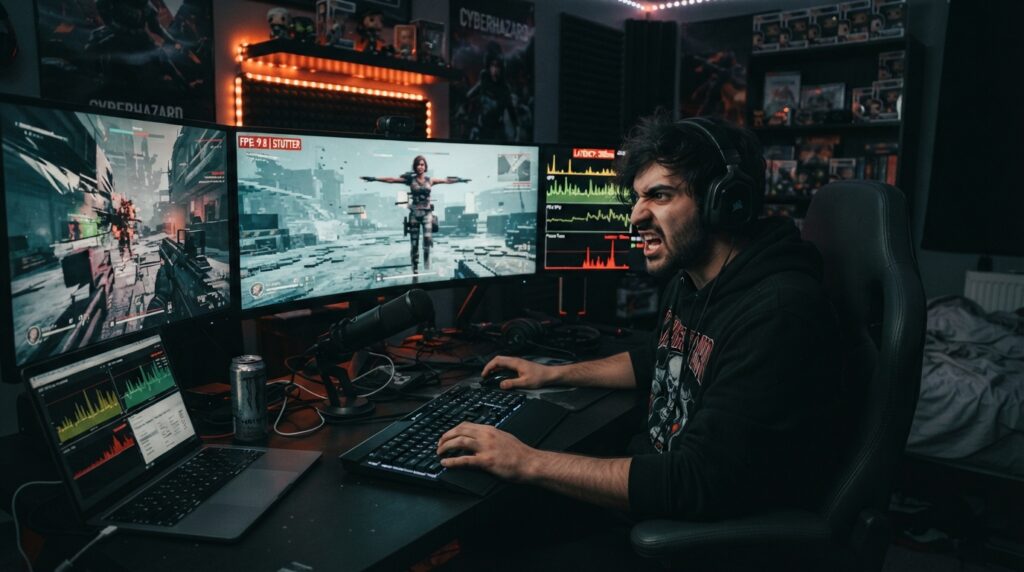
The secret to resolving crashes or freezes in demanding games begins with an accurate technical analysis of your system.
Anúncios
Often, gamers attempt to adjust graphics settings based solely on fleeting impressions, which can lead to misguided decisions.
By performing a proper diagnosis, you avoid wasting time on changes that yield no real results. The focus should always be on finding a balance between visual quality and hardware stability.
Start by measuring performance before changing any settings.
Before making any adjustments, it is essential to establish a baseline. Gaming performance should be evaluated under real-world usage conditions, allowing you to pinpoint exactly where your system is struggling.
Avoid altering resolutions or texture settings without having concrete data. By measuring how your PC behaves, you can determine whether the issue stems from a hardware limitation or simply from poorly optimized settings.
Monitor FPS, as well as the usage of your graphics card, processor, and RAM—and keep an eye on temperatures.
For a comprehensive diagnosis, track key metrics while playing. Monitoring your FPS is just the starting point; you also need to observe the workload of your individual components.
- GPU usage: Indicates whether the graphics card is operating at its limit.
- Processor load: Helps identify CPU bottlenecks.
- RAM consumption: Shows whether a lack of memory is causing freezes or stutters.
- Temperatures: Reveal whether overheating is forcing the system to throttle its speed.
Keep a record of when crashes occur to identify patterns
Not all crashes happen the same way. Try to note the specific moments when issues arise—such as during intense action sequences, while loading new maps, or after long periods of gameplay.
Identifying these patterns helps isolate the root cause. If an error consistently occurs in the same scenario, it may point to an issue with game optimization or file loading.
Useful tools for real-time performance monitoring
There are excellent software options available for monitoring FPS and checking in-game performance without any hassle.
Programs like MSI Afterburner, RivaTuner Statistics Server, and the built-in control panels from NVIDIA or AMD offer detailed on-screen overlays.
These tools allow you to view hardware usage in real time. With this data, you can make more informed adjustments to your computer to ensure smooth gameplay.
How to adjust graphics settings without compromising visual quality
You don’t have to sacrifice all your visual quality to run your favorite games smoothly.
The key is knowing which settings have the greatest impact on processing power and which can be dialed back without a noticeable loss in image fidelity.
When tweaking graphics settings, the goal is to strike a balance that keeps the game looking good while remaining responsive. Small, strategic changes can often free up valuable hardware resources.
Start by reducing shadows, reflections, and volumetric effects
Certain visual effects are major performance drains, even on powerful machines. Detailed shadows, real-time reflections, and volumetric lighting place a heavy load on your graphics card.
- Reduce shadow quality to medium or high.
- Disable reflections on non-essential surfaces.
- Lower the density of volumetric effects, such as fog and smoke.
Adjust resolution and render scale to suit your hardware
Resolution is the most significant factor in graphics processing. If you have a 4K monitor but your hardware struggles to keep up, it may be necessary to lower the native resolution.
Another effective alternative is adjusting the render scale, which allows the game to be processed at a lower resolution and then scaled up to fit the screen, while keeping the user interface sharp.
Use frame generation and upscaling technologies in a balanced way
Upscaling has become essential for those seeking high performance; it allows a game to run at a lower base resolution, using artificial intelligence to reconstruct the image in high quality.
When to choose DLSS, FSR, XeSS, or dynamic resolution
The right technology choice depends directly on the hardware you are using:
- DLSS: Ideal for NVIDIA graphics cards, offering the best image reconstruction.
- FSR: A versatile solution that works on most graphics cards.
- XeSS: An excellent option for Intel graphics cards and other compatible models.
- Dynamic Resolution: Useful when you prefer the game to automatically adjust quality in real time.
Limit your FPS for a more stable experience
Stuttering often occurs because the computer attempts to render more frames than the monitor is capable of displaying. Capping your FPS at 60 or 75 frames per second can help stabilize frame delivery times.
This practice reduces the workload on your processor and graphics card, preventing temperature spikes. By applying these upscaling techniques and manual adjustments, you ensure much more consistent gameplay.
How to update your drivers, system, and game files
Many performance issues stem from outdated drivers or corrupted files. When software fails to communicate effectively with hardware, the result is often unexpected crashes during gameplay.
Install the correct graphics card driver
The most important component for your graphics performance is the GPU. It is essential to download graphics card drivers directly from the manufacturer’s official website—such as NVIDIA, AMD, or Intel.
- Avoid third-party websites for downloading installers.
- Always check the exact model of your card.
- Use the official applications to check for new versions.
Keep your operating system and graphics components up to date
Windows and other operating systems frequently receive patches that improve game compatibility. Keeping your system up to date ensures that essential libraries, such as DirectX, function without errors.
Verify file integrity via your gaming platform
Sometimes, a game file can become corrupted during a download or an incomplete update. Most gaming platforms include a built-in tool to check file integrity and re-download only the files that are missing or corrupted.
Avoid installing beta updates unless necessary
While beta versions may offer new features, they often come with instabilities that can lead to crashes. If your computer is already experiencing issues, it is best to stick to stable versions that have been tested by the developers.
When to perform a clean driver installation
A clean installation is recommended when you switch to a new graphics card or when your current graphics drivers are causing persistent errors. This process removes all traces of previous configurations, ensuring that the new software starts from scratch without any conflicts.
How to manage temperatures and improve computer ventilation
Did you know that excessive heat is one of the biggest enemies of gaming performance?
When internal components reach critical temperature limits, the system automatically reduces their speed to prevent damage—which results in sudden frame rate drops and crashes.
Watch for signs of overheating while gaming
Pay attention to any unusual behavior from your hardware while playing. If your fans are constantly spinning at maximum speed, or if you notice a gradual decline in performance after a few minutes of gameplay, your PC’s temperature may be too high.
Unexpected computer shutdowns are also a clear warning that the system has reached its thermal safety limit. Monitoring these signs helps prevent permanent damage to your most expensive components. Clean filters, fans, and heatsinks safely
Dust accumulation acts as a thermal insulator, preventing efficient heat dissipation. Regularly cleaning air filters, fan blades, and metal heatsinks is essential to keep airflow unobstructed.
Precautions when cleaning components and removing dust
Always unplug the computer from the power outlet before beginning any cleaning procedure. Use short bursts of compressed air, and avoid touching electronic circuits directly to prevent static electricity discharge.
Optimize airflow inside the case
Proper case ventilation requires a clear path for air to circulate. Organize internal cables so they do not block the flow of cool air entering from the front or the hot air exiting through the back or top.
Ensure the computer is not pushed against walls or placed inside enclosed spaces. Maintaining open space around the equipment ensures that the case ventilation functions as designed by the manufacturer.
Replace thermal paste only when necessary
Many users believe that replacing thermal paste is a “magic fix” for any overheating issue. However, this maintenance should only be performed if temperatures remain high even after a thorough system cleaning.
Incorrect application or the use of low-quality products can actually worsen a PC’s temperature issues. If you lack technical experience, consider seeking professional help for this specific procedure.
Conclusion
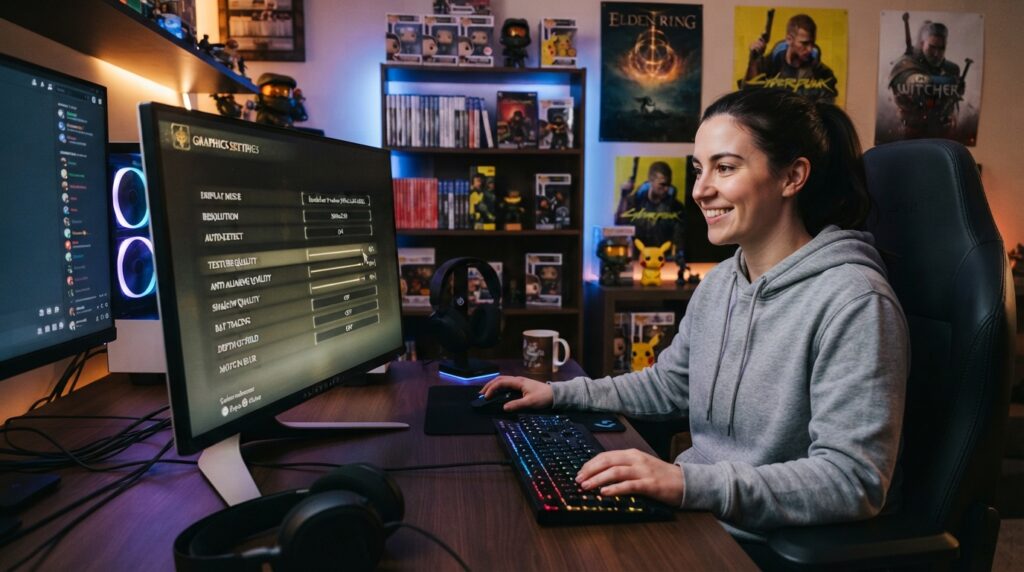
Achieving smoother gameplay requires a methodical and patient approach. The key lies in making targeted adjustments, observing how each change impacts your hardware’s performance.
Always begin with an accurate diagnosis before seeking complex solutions. Monitor resource usage and temperatures to understand how your computer actually behaves during gaming sessions.
Prioritize system organization and keep your NVIDIA or AMD drivers up to date. Maintain a clean software environment to ensure that resources are directed only toward what truly matters.